

Bundles
A bundle is a named list of policies. You assign a bundle to spaces or stacks, and Nimzo checks those stacks against its policies on the next pull request.
There are two kinds of bundle. Nimzo bundles come from Nimzo, and you cannot change them. Your own bundles belong to your organization, and you can edit, restore and delete them.
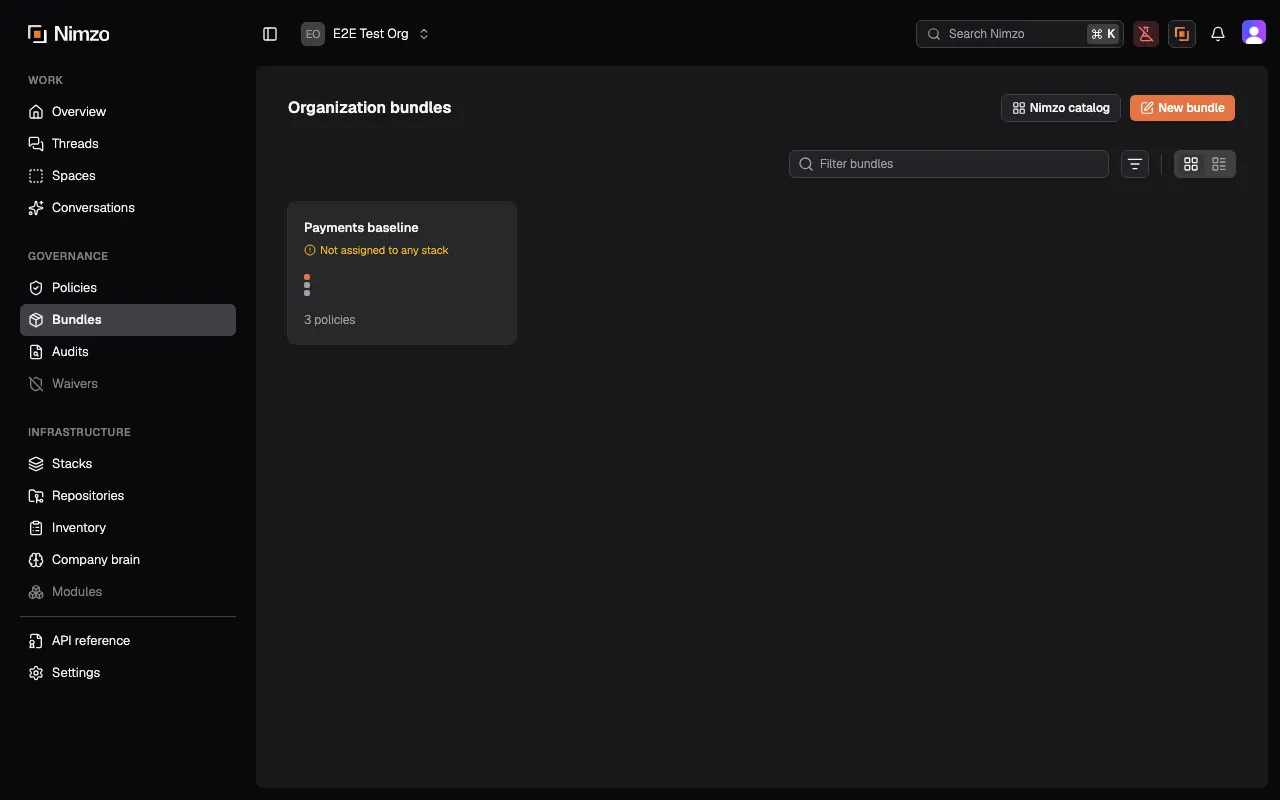
The Bundles page
Section titled “The Bundles page”In the sidebar, select Bundles. The page is titled Organization bundles. It lists the Nimzo bundles you assigned and every bundle of your own. Each card shows:
- The title of the bundle. Nimzo bundles carry the Nimzo mark.
- What the bundle covers: Assigned to all stacks, Assigned to 3 stacks (with the number of stacks), or Not assigned to any stack.
- The severity of its policies.
- The number of policies.
Select a card to open the bundle.
To find a bundle, type in Filter bundles. The search covers the title and description of a bundle, and the title and ID of its policies. Select Filters, the filter icon after the search field, to narrow the list by Provider or Category. You can pick several values of each. The filters in use show in a bar under the search field. In the bar, change is any of to is not to leave the values out, or select Clear to remove every filter. Use the two buttons after Filters to switch between Grid view and List view.
If you have no bundle yet, the page says Your bundles library is empty. It offers Nimzo catalog and New bundle.
Assign a Nimzo bundle
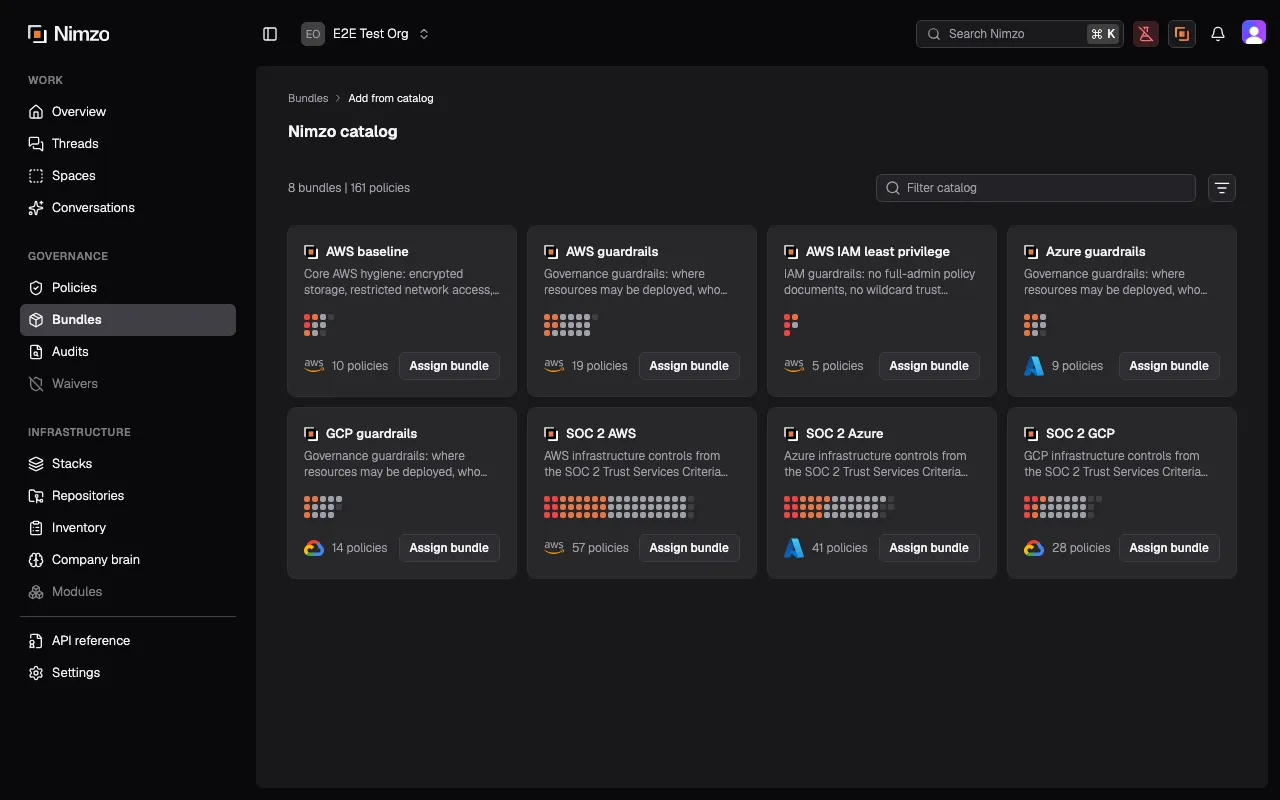
Section titled “Assign a Nimzo bundle”Use the Nimzo catalog to add a bundle that Nimzo maintains.
- On the Bundles page, select Nimzo catalog.
- Find the bundle. Type in Filter catalog, or select Filters to narrow the list by Provider or Category.
- On the card of the bundle, select Assign bundle.
- Select Assign to spaces or Assign to stacks.
- Select the spaces or stacks. Type in Search spaces to find a space by name. The sheet shows how many stacks each space holds.
- Select Save spaces or Save stacks.
Every card in the catalog shows the number of policies and the logo of the cloud provider of the bundle. The bundle page shows the logo with the full name of the provider, such as Amazon Web Services. A bundle with policies for several providers says Multiple providers. A bundle you already assigned shows where it is assigned in place of the button. The top of the page counts the bundles and the policies in the catalog.
For more on spaces, see Spaces.
What happens next
Section titled “What happens next”Nimzo shows a Spaces saved or Stacks saved message. The bundle now appears on the Bundles page. Checks start on the next pull request. Nimzo does not check code that is already in your repositories until you run an audit.
Create a bundle
Section titled “Create a bundle”You build your own bundle from policies. The policies come from Nimzo or from your organization.
- On the Bundles page, select New bundle.
- Select From scratch.
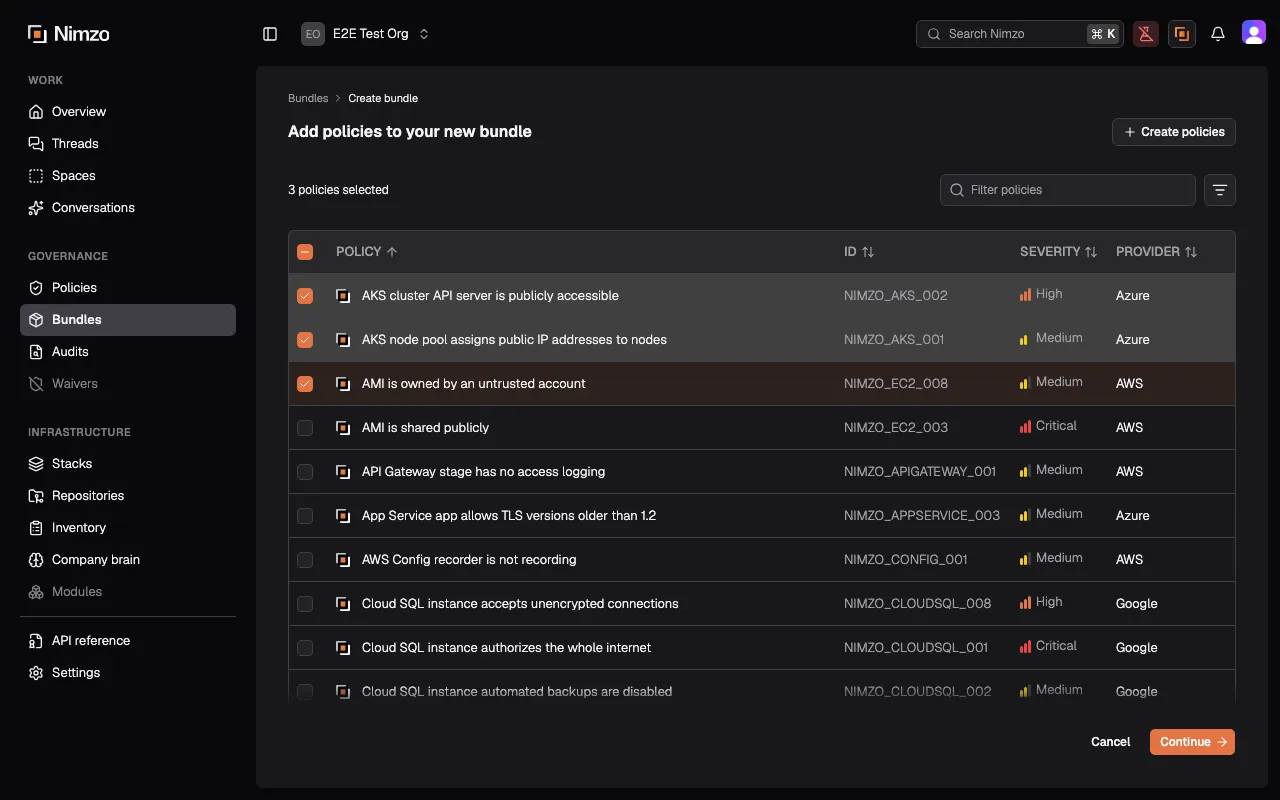
- On Add policies to your new bundle, select the policies to include. Type in Filter policies to search. Select Filters to narrow the list by Provider or Severity. Select a column title to sort the table.
- Select Continue. The button stays off until you select one policy.
- In Name, type a name for the bundle.
- In Description, say what the bundle checks. This field is optional.
- Select Create bundle.
If a policy you need does not exist yet, select Create policies at the top of the first screen. See Policies.
The second screen also shows the severity of the selected policies and the list under Policies to add. Select Select policies at the bottom to go back and change the selection.
What happens next
Section titled “What happens next”Nimzo shows a Bundle created message and opens the bundle. The bundle is not assigned to anything yet. To start the checks, assign it.
Generate from your stacks in the New bundle menu is not available yet.
Create a bundle from selected policies
Section titled “Create a bundle from selected policies”You can also start from the list of policies. This path also lets you set values and enforcement, then assign the bundle in one flow.
- In the sidebar, select Policies.
- Select the policies for the bundle.
- In the bar at the bottom, select Create bundle from 4 policies (with the number you selected).
- In Bundle name, type a name.
- In Description (optional), say what the bundle checks.
- Select Create and configure.
Nimzo shows a Bundle created message. The bundle keeps a link to each Nimzo policy and keeps receiving its updates. Your own policies move into the new bundle as they are.
Configure policies
Section titled “Configure policies”The first screen is Configure policies. It lists the policies that read a parameter. If none of them does, Nimzo skips this screen.
- Select the pencil button in the Parameter keys column to set the values of one policy. Select Organization default values to set the values of all policies at once.
- Set a value in All values, or edit the YAML tab. Nimzo saves a value when you leave its field.
- Select Close.
- Select Continue. If you changed no value, you can select Skip — keep defaults instead.
Select a policy row to read its details. Use Cancel or Back to leave the flow.
Enable bundles: choose targets
Section titled “Enable bundles: choose targets”The second screen is titled Enable bundles. Each bundle has a card with two parts.
- Under Spaces, select the spaces. The first checkbox selects every space.
- Under Stacks, select the stacks. A stack in a selected space is already governed, so it needs no selection.
- In the Enforcement · organization setting card, choose what a failed check blocks:
- Errors only blocks on Critical and High.
- Errors and warnings blocks on Critical, High and Medium.
- All findings blocks on every failing policy, Low included.
- To use another mode for one stack, select Add stack override and pick the stack. Then choose its mode. Select the x button to remove the override.
- Select Review and enable.
The organization setting is shared by every bundle. You can also change it in Settings.
Enable bundles: review and enable
Section titled “Enable bundles: review and enable”The last screen shows what Nimzo will enable. Each card lists Policies, Values, Targets, Forks and Source. A bundle with no target shows a warning: it is not enabled until you add a space or a stack.
- Read the cards and the Enforcement card.
- Select Enable 1 bundle (with the number of bundles).
Nimzo links the stacks one by one. The Enabling 1 bundle on 3 stacks card shows each stack as Queued, Syncing, Linked or Failed. Keep the page open. It usually takes less than a minute.
What happens next
Section titled “What happens next”Checks start on the next pull request. Nimzo does not check existing code until you run an audit.
Open a bundle
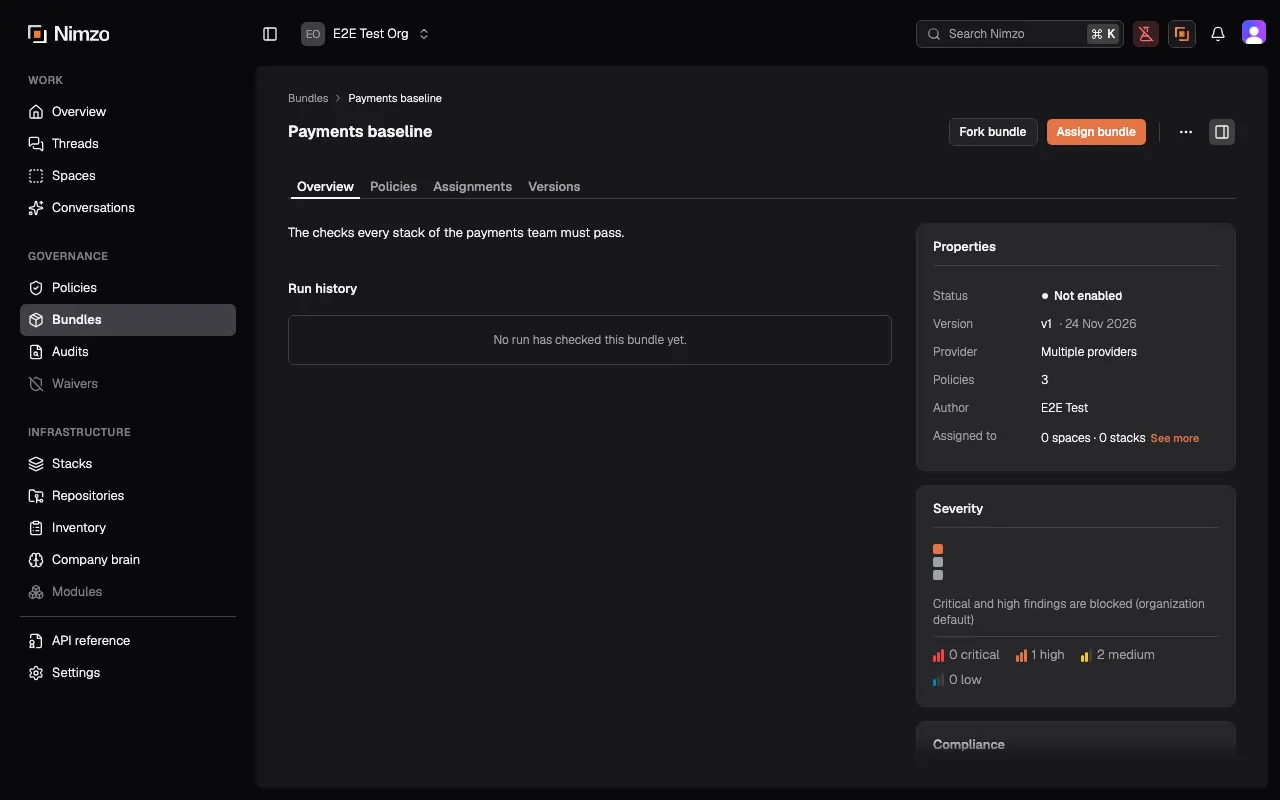
Section titled “Open a bundle”On the Bundles page, select a bundle. The page has four tabs.
- Overview shows the description, the latest runs, and the bundle properties: Status (Enabled or Not enabled), Version, Provider, Policies, Author and Assigned to. Select See more next to Assigned to to open the Assignments tab. The severity of the policies and the controls they cover show on the right. Select the side button in the header to hide or show this column.
- Policies lists the policies of the bundle. Type in Filter policies, or select Filters to filter by Provider or Severity. Select a policy to open it.
- Assignments lists every space and stack the bundle is assigned to, with the enforcement mode for each. If there is none, it says This bundle is not assigned yet.
- Versions lists the versions of the bundle, newest first. The current version carries the Current badge.
Assign a bundle
Section titled “Assign a bundle”You can assign any bundle from its page. You can also change the assignment later.
- Open the bundle.
- Select Assign bundle. On the other tabs, the button says Assign.
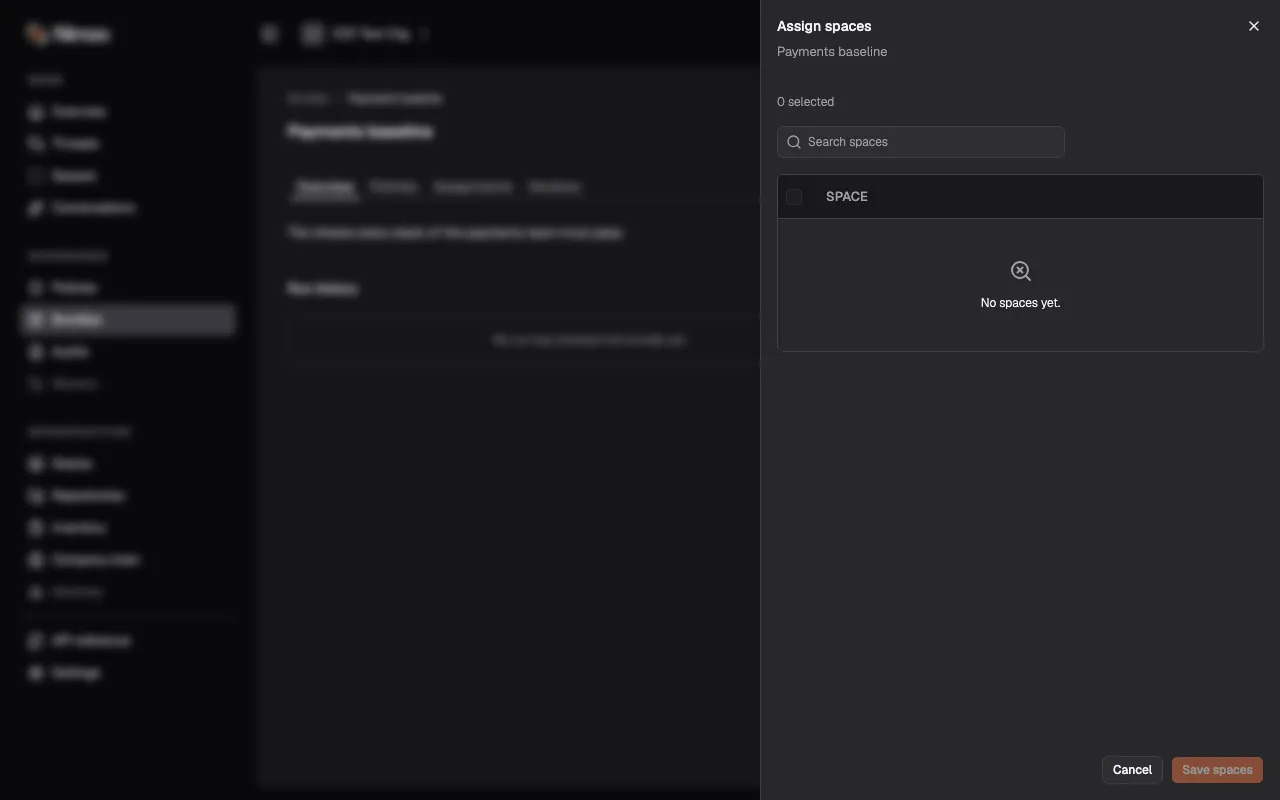
- Select Assign to spaces or Assign to stacks.
- Select the spaces or stacks, and clear the ones you want to remove.
- Select Save spaces or Save stacks. The button stays off until you change the selection.
Nimzo shows a Spaces saved or Stacks saved message.
Edit a bundle
Section titled “Edit a bundle”You can edit your own bundles. You cannot edit a Nimzo bundle.
- Open the bundle.
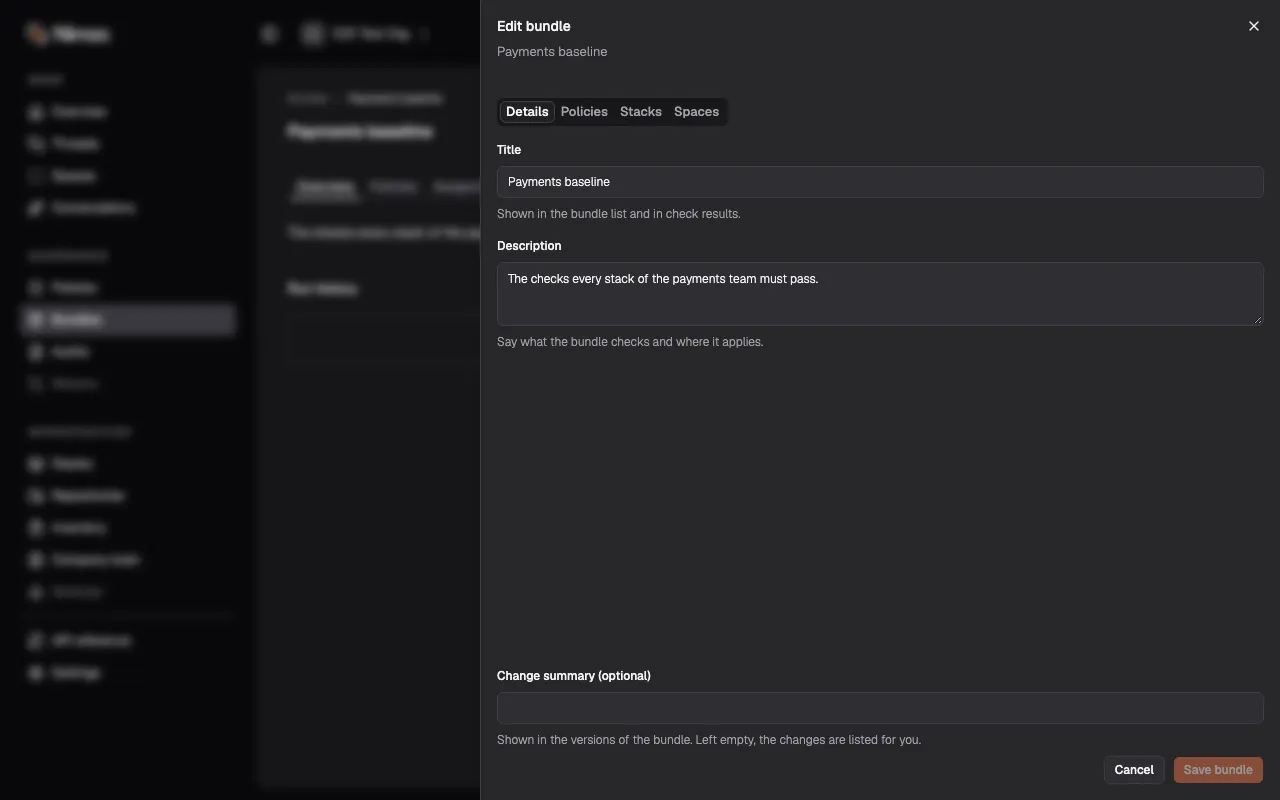
- Select the Bundle actions button, then Edit bundle.
- In Details, change the Title and the Description. In Policies, Stacks and Spaces, change the selection.
- In Change summary (optional), say what you changed. If you leave it empty, Nimzo lists the changes for you. The summary shows in the Versions tab.
- Select Save bundle.
Nimzo shows a Bundle saved message and adds a version.
Fork a bundle
Section titled “Fork a bundle”A fork is a copy that belongs to your organization. Fork a Nimzo bundle when you want to change it.
- Open the bundle.
- Select Fork bundle.
Nimzo shows a Bundle forked message and opens the copy. It is titled Copy of followed by the original title. You can edit it.
Restore an earlier version
Section titled “Restore an earlier version”You can restore a version of your own bundles. Nimzo bundles have no restore.
- Open the bundle and select the Versions tab.
- On the version you want, select Restore. The current version has no Restore button.
- Read the dialog. It restores the title, description and policies of that version. Stack and space assignments do not change.
- Select Restore version.
Nimzo shows a Version 2 restored message (with the version number).
Delete a bundle
Section titled “Delete a bundle”You can delete your own bundles. The policies in the bundle stay available.
- Open the bundle.
- Select the Bundle actions button, then Delete.
- Select Delete bundle.
Nimzo shows a Bundle deleted message and goes back to the Bundles page.
Nimzo bundles and your bundles
Section titled “Nimzo bundles and your bundles”| Action | Nimzo bundle | Your bundle |
|---|---|---|
| Assign to spaces or stacks | Yes | Yes |
| Fork | Yes | Yes |
| Edit | No | Yes |
| Restore an earlier version | No | Yes |
| Delete | No | Yes |
Troubleshooting
Section titled “Troubleshooting”- “Could not load the bundles. Check your connection and try again.” Select Retry. Other screens show the same kind of message for policies, versions and assignments.
- “This bundle does not exist, or you cannot see it.” Select Back to bundles.
- “Another bundle already uses this name. Pick a different one.” Type another name. The edit sheet shows “Another bundle already uses this title. Please use another title.”
- “Enter a name for the bundle.” or “Enter a title for the bundle.” Fill in the field.
- “Could not create the bundle. Check your connection and try again.” Select Retry. The dialog on the Policies page says “Could not create the bundle. Try again.”
- “Some of the bundle policies no longer exist or are not published. Check the policies and try again.” Select the policies again and save.
- “This bundle no longer exists. Refresh the page.” Someone deleted the bundle. Reload the page.
- “Could not save the spaces. Try again.” or “Could not save the stacks. Try again.” Select the save button again.
- “Could not fork the bundle” Select Retry in the message.
- “Could not delete this bundle.” Select Delete bundle again.
- “You do not have permission to do this. Ask an Admin of the organization.” Ask an Admin to do the action.
- “Enable stopped: 1 of 3 stacks failed” Nimzo names the stack and the reason. Nothing is enforced on that stack. Select Retry, or select Continue with 2 stacks to go on without it.
- “Enable stopped before any stack was linked” Select Retry.