

Members and roles
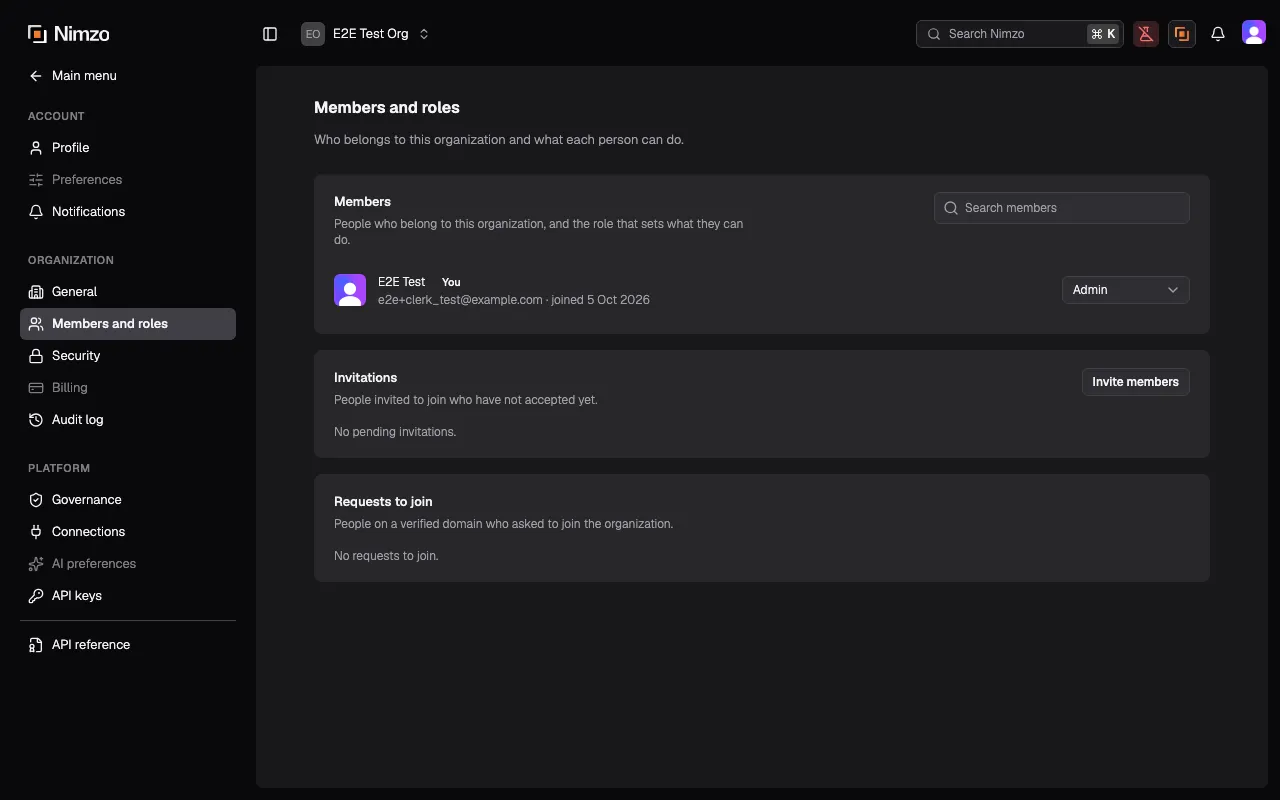
Members and roles shows who belongs to your organization and what each person can do. Each member has one role: Admin or Member.
Before you start
Section titled “Before you start”In the sidebar, select Settings, then Members and roles. Every member can see the list of members. Only an Admin can invite members, change roles, remove members and answer requests to join.
Find a member
Section titled “Find a member”- In Members, enter a name or an email address in Search members.
- Read the result list.
Each row shows the name, the email address and the date when the person joined. Your own row shows You. If no row matches, the page shows No members match your search.
Invite members
Section titled “Invite members”You invite people by email address. All people in one invitation get the same role.
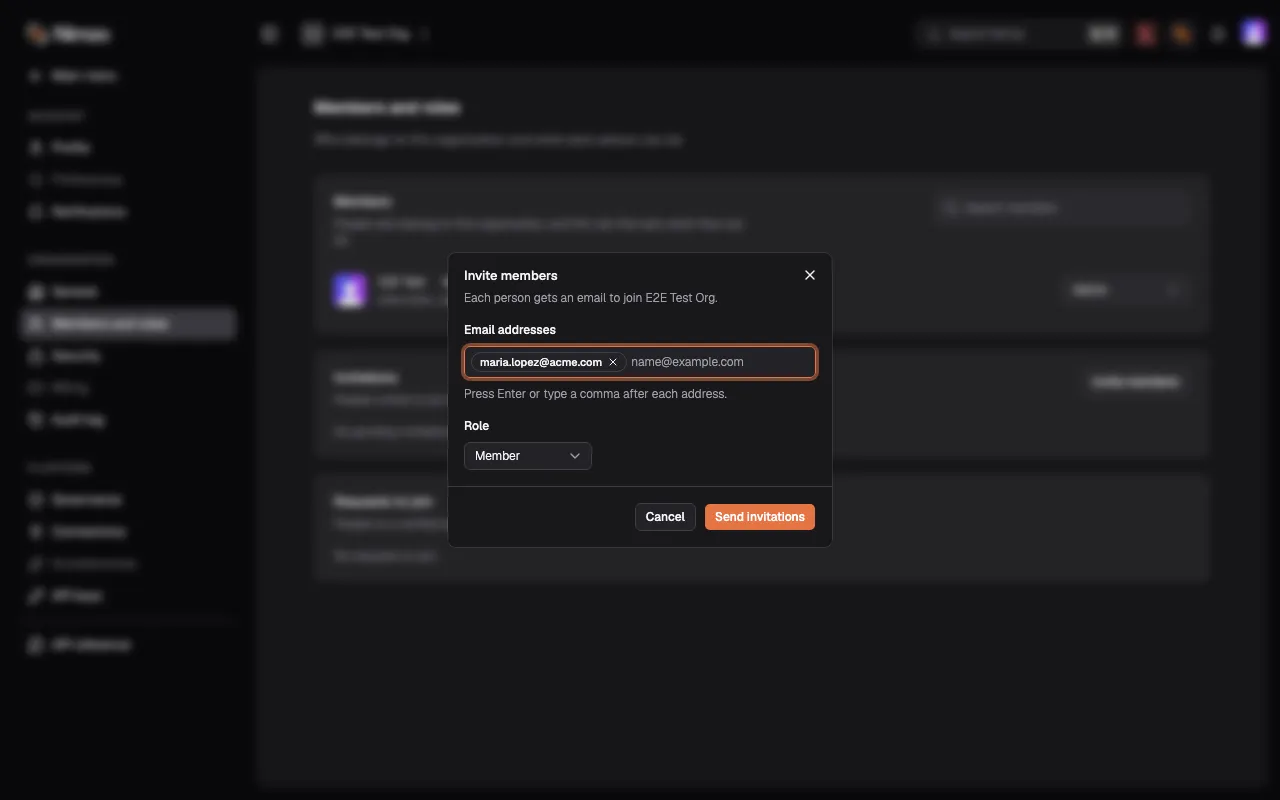
- In Invitations, select Invite members.
- In Email addresses, enter an address, then press Enter or type a comma. Repeat for each person.
- In Role, choose the role for these people.
- Select Send invitations.
Nimzo shows the message Invitations sent. Each person gets an email with a link to join. The invitation appears in the Invitations list with the role and the date.
If an address is not valid, the dialog shows which one to fix or remove. Each address needs the form name@example.com.
Revoke an invitation
Section titled “Revoke an invitation”Revoke an invitation to stop a person from joining with it.
- In Invitations, find the invitation.
- Select Revoke.
- Select Revoke invitation to confirm.
The link in the email stops working. Nimzo shows the message Invitation revoked.
Change the role of a member
Section titled “Change the role of a member”- In Members, find the member.
- Open the role menu in the row of the member.
- Choose the new role.
Nimzo shows the message Role changed. The new role applies at once.
Remove a member
Section titled “Remove a member”- In Members, find the member.
- Select Remove.
- Select Remove member to confirm.
The person loses access to the organization until a member invites them again. Nimzo shows the message Member removed. You cannot remove yourself here. To leave, see Leave an organization.
Answer a request to join
Section titled “Answer a request to join”The Requests to join section lists people on a verified domain who asked to join. It appears only when your organization has domains turned on. To let people ask to join, set a domain to Automatic suggestions on General.
- In Requests to join, find the person.
- Select Accept to add the person, or Reject to decline.
Nimzo shows the message Request accepted or Request rejected.
Troubleshooting
Section titled “Troubleshooting”- Could not load the members, Could not load the invitations or Could not load the requests to join: reload the page.
- Could not change the role: the message gives the reason. Try again.
- Could not answer the request: the message gives the reason. Try again.