

API keys
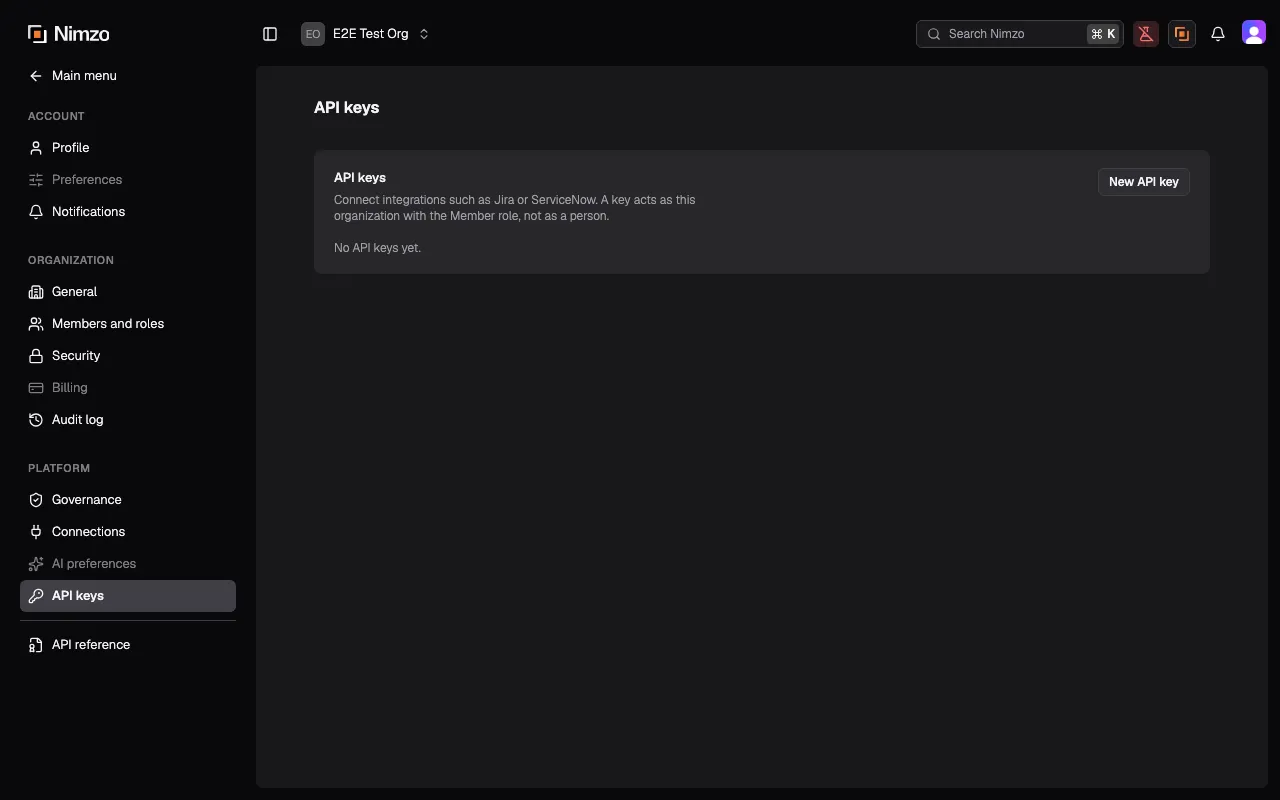
An API key connects an integration such as Jira or ServiceNow to your organization. A key acts as the organization with the Member role, not as a person. You find API keys in Settings, under Platform.
Before you start
Section titled “Before you start”- You need the Admin role to see API keys. Without it, the page says Viewing API keys needs the Admin role.
- If the page says API keys are turned off for organizations., contact Nimzo support.
Create an API key
Section titled “Create an API key”- In Settings, select API keys.
- Select New API key.
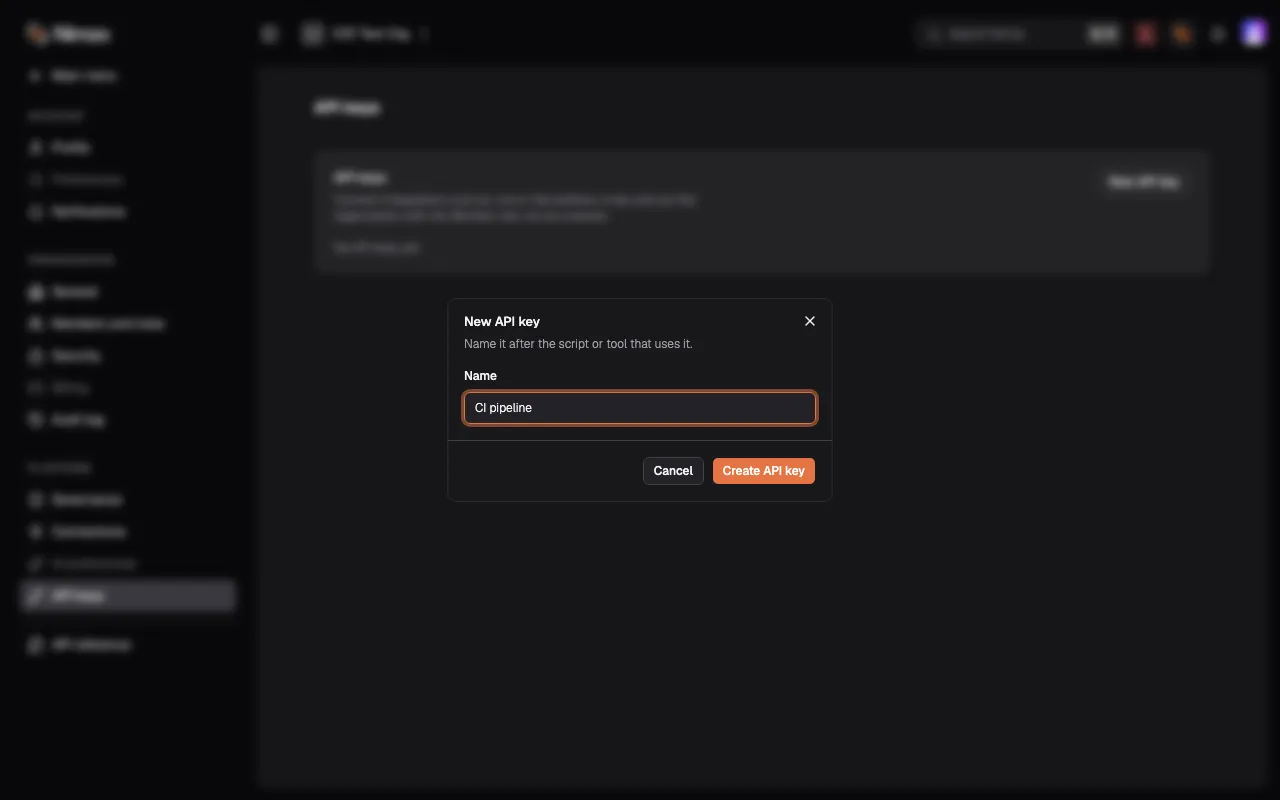
- In Name, type the name of the script or tool that uses the key. For example,
CI pipeline. - Select Create API key.
Nimzo shows the key in the Copy your API key dialog. Select the copy button, and store the key in a safe place. Nimzo cannot show it again.
- Select Close after you copy the key.
- If you did not copy the key, Nimzo warns you. Select Close without copying only if you do not need the key.
The new key shows in the list with its creation date and its expiry. A key that does not expire shows never expires.
Revoke an API key
Section titled “Revoke an API key”Scripts and tools that use the key stop working right away.
- Find the key in the list.
- Select Revoke.
- In the Revoke API key dialog, select Revoke API key.
Nimzo shows the message API key revoked. The key stays in the list with the status Revoked. A key that passed its expiry date shows Expired.
Troubleshooting
Section titled “Troubleshooting”- Could not load the API keys. Reload the page.
- No API keys yet. Select New API key to create the first one.