

General
General holds the settings that the whole organization shares: its name and logo, its verified domains, its environments, and the option to leave or delete it.
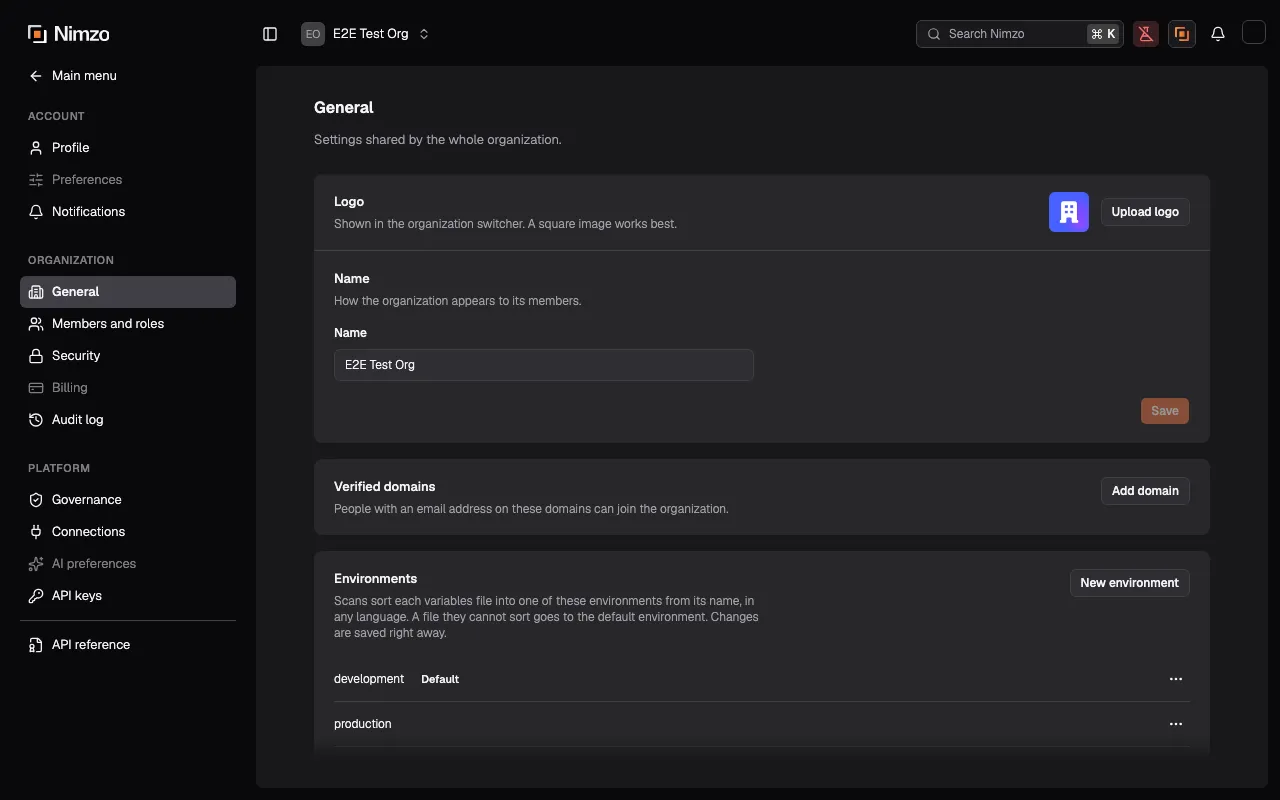
In the sidebar, select Settings, then General. Every member can open this page and manage the environments. Only an Admin can change the logo, the name and the verified domains, or delete the organization. A member who is not an Admin sees the name but cannot edit it.
Change the organization name
Section titled “Change the organization name”- On General, find the Name section.
- Enter the new name in the Name field.
- If the page shows a Slug field, change it when you need a new short identifier.
- Select Save.
Nimzo shows the message Organization updated. The new name appears in the organization switcher.
Upload or remove the organization logo
Section titled “Upload or remove the organization logo”The logo appears in the organization switcher. A square image works best.
- On General, find the Logo section.
- Select Upload logo.
- Choose a PNG, JPEG, GIF or WebP image from your computer.
Nimzo shows the message Logo updated. To go back to the initials, select Remove. Nimzo shows the message Logo removed.
Add a verified domain
Section titled “Add a verified domain”People with an email address on a verified domain can join the organization. The Verified domains section is visible only when your organization has domains turned on.
- In Verified domains, select Add domain.
- Enter your domain, for example
example.com. - Select Add domain.
- In Email address, enter the part of an address before the
@. The field adds@and your domain. Nimzo sends a verification code to this address. - Select Send code.
- Enter the code in the Code field.
- Select Verify.
Nimzo shows the message Domain verified. A domain that you have not verified shows the badge Unverified. To finish, select the actions menu of the domain, then Verify.
Change how people join through a domain
Section titled “Change how people join through a domain”- In Verified domains, open the actions menu of the domain.
- Select Change enrollment.
- Choose one option:
- No automatic enrollment: people can only join when a member invites them.
- Automatic invitations: people are invited when they sign up and can join at any time.
- Enterprise SSO: people join through the company’s single sign-on.
- Automatic suggestions: people can ask to join, and a member who manages members approves them.
- To clear open invitations and suggestions, select the checkbox Also delete the … pending invitations and suggestions. The number depends on how many are open.
- Select Save.
The options that you see depend on your organization. Requests to join appear on Members and roles.
Remove a verified domain
Section titled “Remove a verified domain”- In Verified domains, open the actions menu of the domain.
- Select Remove.
- Select Remove domain to confirm.
People on this domain can no longer join the organization through it.
Manage environments
Section titled “Manage environments”Nimzo sorts each variables file in a scan into one environment, based on the file name. A file that Nimzo cannot sort goes to the default environment. Nimzo saves changes right away.
To add an environment:
- In Environments, select New environment.
- Enter a name, for example
qa. - Select Create environment.
To change an environment, open its actions menu and select Rename, Set as default or Delete. You cannot delete the default environment. When you delete an environment, its variables files move to the default environment.
Danger zone
Section titled “Danger zone”The Danger zone has two actions. Both ask you to confirm.
Leave an organization
Section titled “Leave an organization”Every member can leave. You lose access to the stacks, policies and audits of the organization until a member invites you again.
- In the Danger zone, select Leave organization.
- Select Leave organization again to confirm.
Nimzo shows the message You left the organization and takes you to the home page.
Delete an organization
Section titled “Delete an organization”Only an Admin can delete an organization. Every member loses access at once.
- In the Danger zone, select Delete organization.
- Read the message in the dialog.
- Select Delete organization again to confirm.
Nimzo shows the message Organization deleted.