

Spaces
A space is a named group of stacks, such as the stacks of one team or one product. Filter the Stacks page by a space to see only the stacks it holds. A stack can be in several spaces.
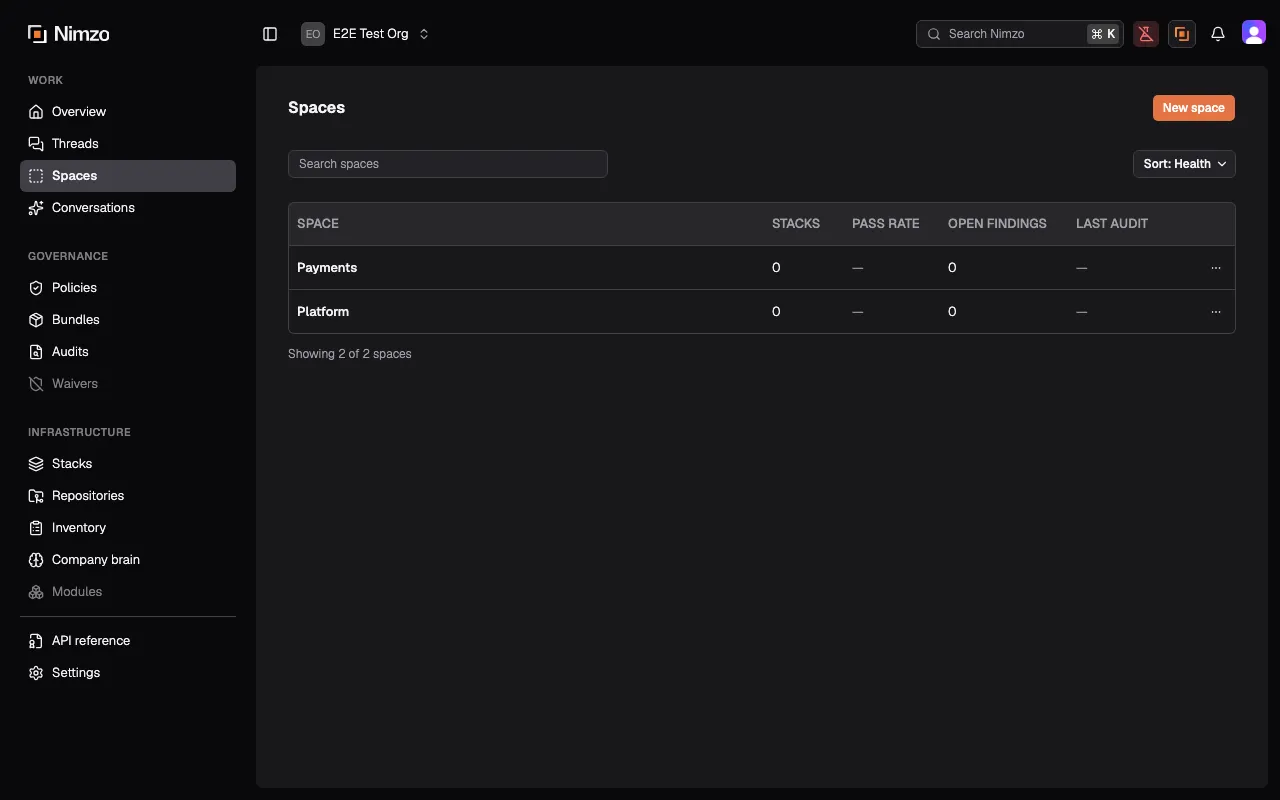
The Spaces page is a table with one row per space. Each row shows the space name with the names of its stacks, the number of stacks, the pass rate, the number of open findings, and the date of the last audit. Type in Search spaces to find a space by name. Use Sort to order the rows by health, name, open findings, or last audit. Select a row to open the space, which has Overview, Stacks, and Findings pages.
Create a space
Section titled “Create a space”- In the sidebar, select Spaces.
- Select New space.
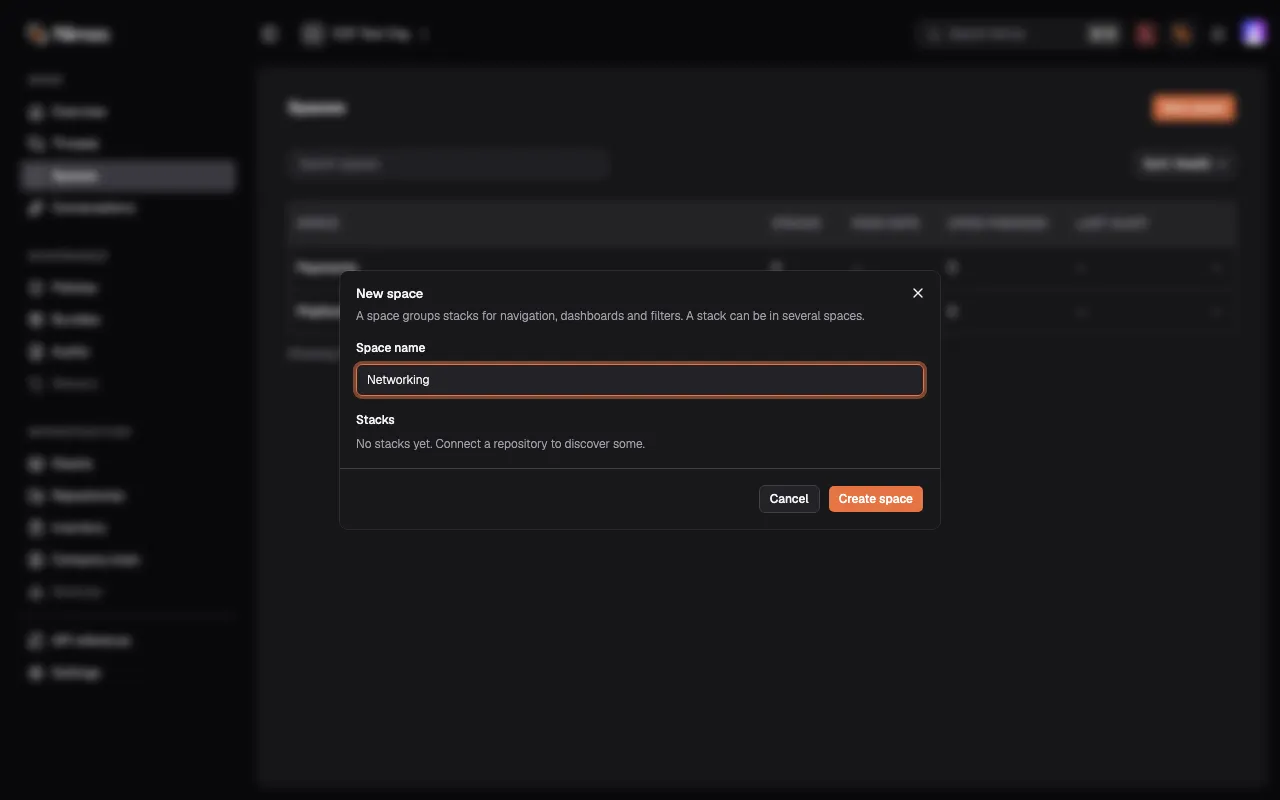
- In Space name, type a name of up to 100 characters.
- Under Stacks, select the stacks the space holds. Type in Search stacks to find a stack by name, then select Select matching to add every stack the search shows. Select all adds every stack, and Clear removes them all.
- Select Create space.
You can also create a space from the space switcher in the header of a stack page: select New space… at the bottom of its list.
If you have no stacks yet, the dialog says so. You can create the space now and add stacks to it once you have connected a repository.
Show the stacks of a space
Section titled “Show the stacks of a space”- In the sidebar, select Stacks.
- Select the Filters button.
- Select Space, then select one or more spaces.
The Stacks page now shows only the stacks of those spaces. The filters in use show in a bar under the search field. To leave a space out instead, change is any of to is not in the bar. To remove the filters, select Clear.
You can also open a space and select its Stacks page.
On a stack page, the header shows the space switcher next to the stack switcher. Pick a space there, and the stack switcher lists only the stacks of that space. Nimzo remembers this space in this browser until you pick another one.
Edit a space
Section titled “Edit a space”- On the Spaces page, select the ⋯ button on the space’s row.
- Select Edit.
- Change the name, or select and clear stacks. The stacks already in the space are listed first.
- Select Save.
Delete a space
Section titled “Delete a space”- On the Spaces page, select the ⋯ button on the space’s row.
- Select Delete.
- Select Delete again to confirm.
Deleting a space does not delete its stacks. They stay in the other spaces that hold them. If you were working in that space, Nimzo goes back to All spaces.
Troubleshooting
Section titled “Troubleshooting”- “Could not load your spaces.” Select Retry. If the message stays, reload the page.
- “Could not delete this space.” Select Delete again. If the message stays, reload the page and try once more.