

Audit log
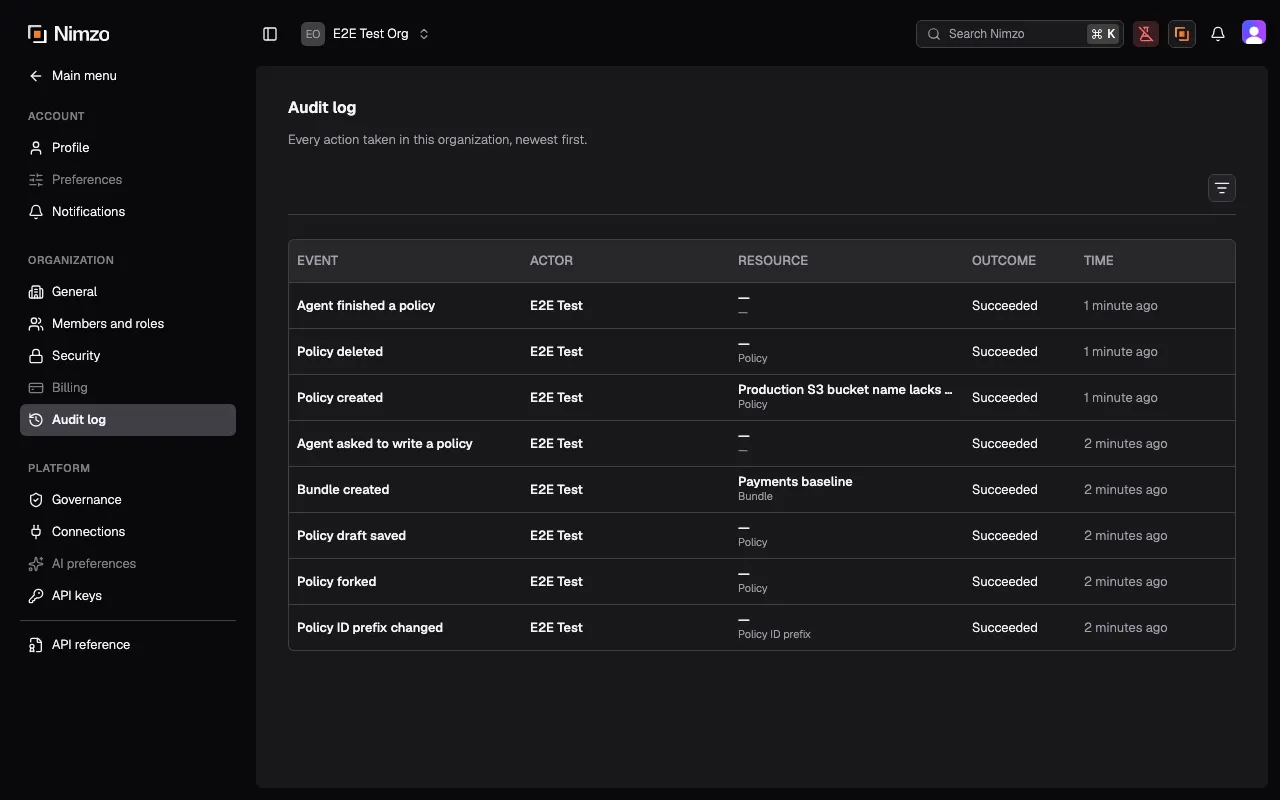
The Audit log records every action taken in your organization, newest first. Use it to see who changed what, and when.
Before you start
Section titled “Before you start”In the sidebar, select Settings, then Audit log. Only an Admin sees this item and can use it. Other members see Viewing the audit log needs the Admin role.
Read the audit log
Section titled “Read the audit log”The table has these columns:
| Column | What it shows |
|---|---|
| Event | What happened, for example Member added or Policy created. |
| Actor | The member who did it. Nimzo means the system did it. Through an API key means the action used an API key. |
| Resource | The name and type of the object that changed. |
| Outcome | Succeeded or Failed. |
| Time | When it happened. |
The table loads more events as you scroll. Events include sign-ins, member and role changes, policy and bundle changes, connections and stacks.
See the details of an event
Section titled “See the details of an event”- In the table, select the row of the event.
- Read the panel. It shows the actor, the outcome, the resource, its name and ID, the IP address and the browser or client.
- Read Changes to compare Before and After values.
- Read Details for more information about the event.
Filter the audit log
Section titled “Filter the audit log”- Select the Filters button.
- Select Action and choose an event type. Or select Actor and choose a member.
- To filter by both, set both.
The filters in use show in a bar under the button.
To remove the filters, select Clear filters.
Troubleshooting
Section titled “Troubleshooting”- No audit events yet. Events appear after the first action in the organization.
- No audit events match these filters. Select Clear filters.
- Could not load the audit log. Check your connection and try again. Select Retry.