

Profile
Your profile is your own account. It is the same in every organization you belong to. Use it to change your name, email addresses, password and two-step verification.
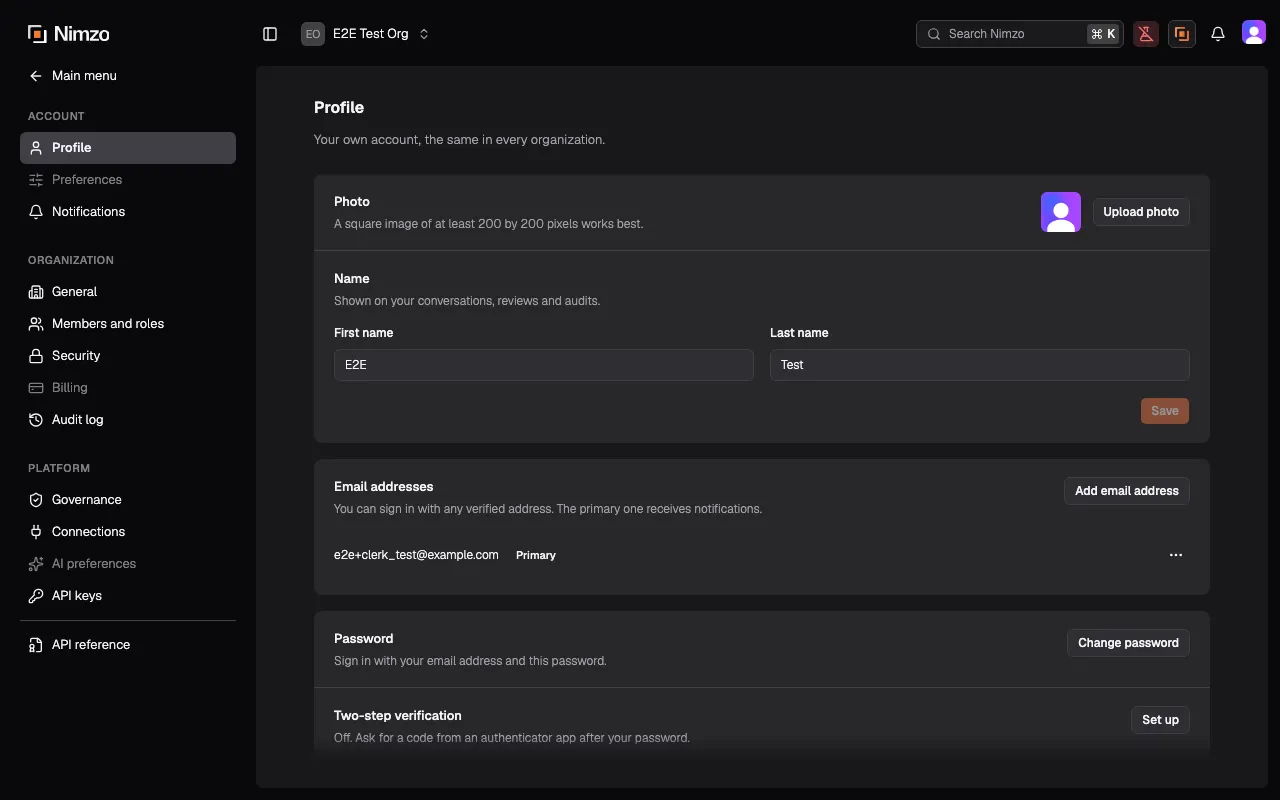
To open it, select Settings in the sidebar, then Profile. Your organization can turn some sections off. If you do not see a section, your organization does not offer it.
Change your photo or name
Section titled “Change your photo or name”- In the Photo row, select Upload photo and choose an image. A square image of at least 200 by 200 pixels works best.
- To delete the photo, select Remove.
- In the Name row, enter your First name and Last name.
- Select Save.
Nimzo shows your name on your conversations, reviews and audits.
Add an email address
Section titled “Add an email address”You can sign in with any verified email address. The primary address receives your notifications.
- In Email addresses, select Add email address.
- Enter the address in Email address.
- Select Send code.
- Enter the code from the email in Code.
- Select Verify.
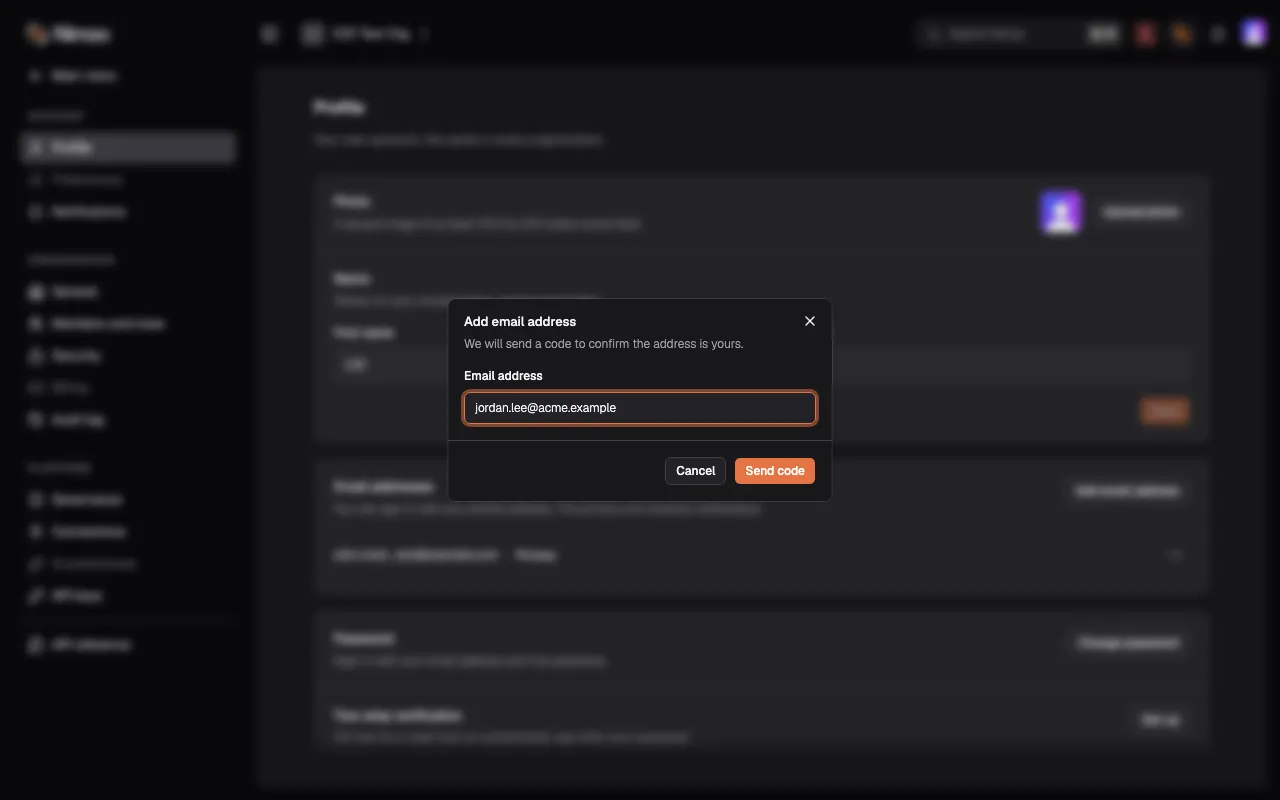
The new address shows Unverified until you enter the code. To finish later, open the actions menu of the address and select Verify.
Make an email address primary
Section titled “Make an email address primary”- In Email addresses, open the actions menu of the address.
- Select Set as primary.
Nimzo shows the message Primary email address changed.
Remove an email address
Section titled “Remove an email address”- In Email addresses, open the actions menu of the address.
- Select Remove.
- Select Remove email address to confirm.
You can no longer sign in with this address.
Change or set your password
Section titled “Change or set your password”- In Password, select Change password. If you sign in without a password, select Set password.
- If you already have a password, enter your Current password.
- Enter the New password and Confirm new password. Use the minimum length that the dialog shows.
- To end your other sessions, select Sign out of other devices.
- Select Change password, or Set password for a first password.
A longer passphrase is safer than a short complex password.
Turn on two-step verification
Section titled “Turn on two-step verification”Two-step verification asks for a code from an authenticator app after your password.
- In Two-step verification, select Set up.
- Scan the QR code with your authenticator app. If you cannot scan it, select Copy key and enter the key in the app.
- Enter the code from the app in Code.
- Select Turn on.
Nimzo shows your backup codes. Save them in a safe place. Nimzo does not show them again.
To turn it off, select Turn off, then select Turn off again to confirm. Your backup codes stop working.
Create new backup codes
Section titled “Create new backup codes”Each backup code signs you in once when you cannot use your authenticator app.
- In Backup codes, select Create new codes.
- Select Copy backup codes and save the codes in a safe place.
- Select Close.
The previous codes stop working.
Add a passkey
Section titled “Add a passkey”A passkey lets you sign in with the fingerprint, face or PIN of your device instead of a password.
- In Passkeys, select Add passkey.
- Follow the prompt of your device.
Each passkey shows when you added it and when you last used it. To change its name, open its actions menu and select Rename. To delete it, select Remove, then Remove passkey.
Connect an account
Section titled “Connect an account”Connect a social account to sign in with it instead of your email address.
- In Connected accounts, find the provider and select Connect.
- Follow the steps of the provider.
To stop using an account, select Disconnect, then Disconnect again. You can no longer sign in with this account.
If your company manages your sign-in, the Enterprise accounts row lists these accounts. Ask your company administrator to change them.
Review your active devices
Section titled “Review your active devices”Active devices lists the devices where you are signed in. Each device shows its browser and when it was last active. When Nimzo knows the location of the device, it shows it too. Your current device has the label This device.
- Find a device that you do not recognize.
- Select Sign out.
- Change your password.
Delete your account
Section titled “Delete your account”In the Danger zone, you can delete your account.
- Select Delete account.
- Select Delete account again to confirm.
Nimzo removes your account for good. You cannot restore it. Nimzo signs you out everywhere. Your organizations keep their data.
Confirm it is you
Section titled “Confirm it is you”For some changes, Nimzo opens the Confirm it is you dialog. Enter your password, or the code that Nimzo sends or your authenticator app shows. Then select Continue.
Personal API keys
Section titled “Personal API keys”If your organization turns them on, the page also shows Personal API keys. A key has the same access you have.